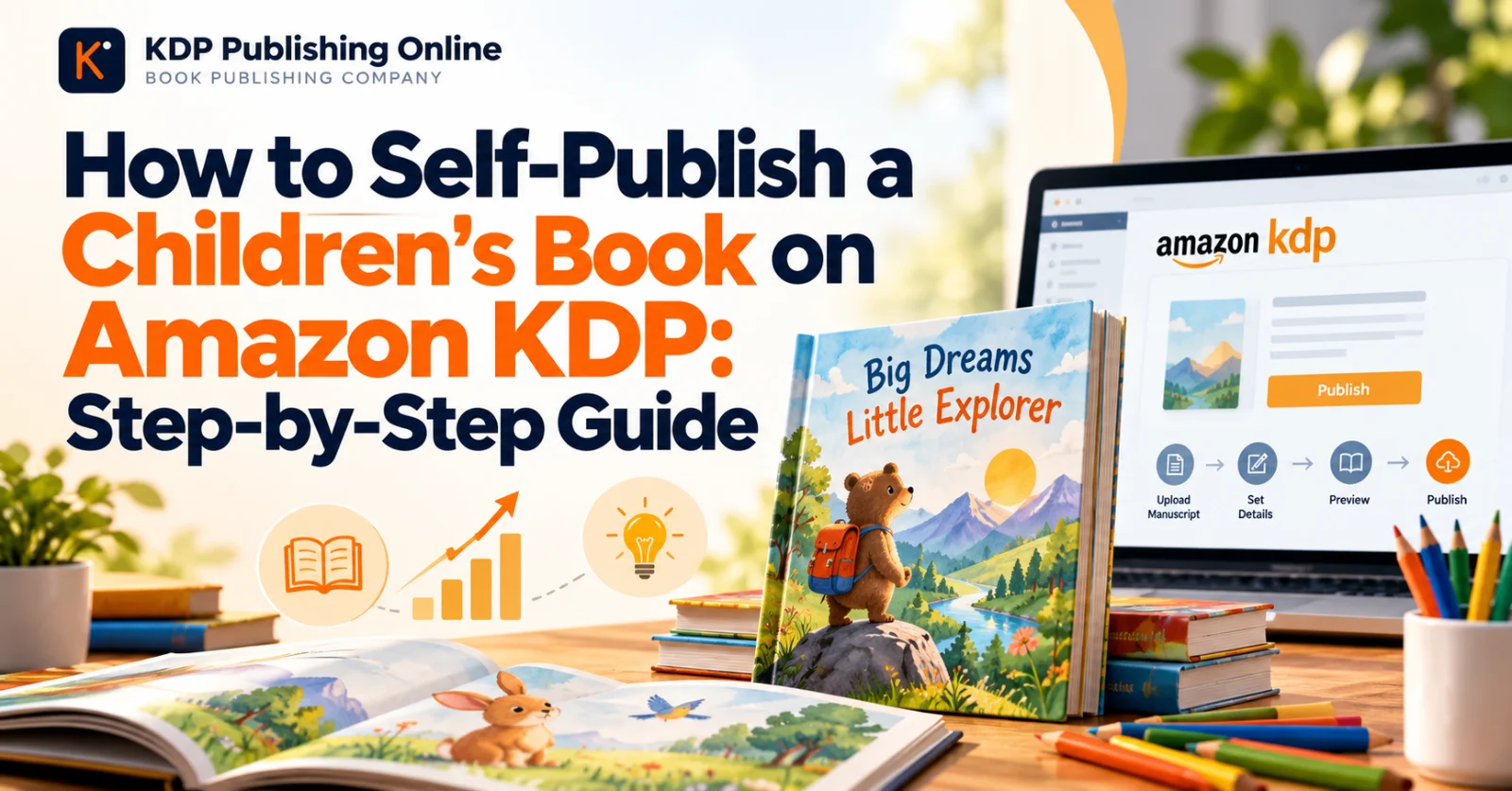
To self-publish a children's book on Amazon KDP you finish the story and illustrations, choose a trim size and colour option, build a print-ready PDF with bleed, design a full-wrap cover, set up the title in KDP, order a proof copy, and publish. For an eBook edition you convert the same artwork with Kindle Create. KDP is free to use; the real costs are illustration, layout and printing, which KDP deducts from each print sale.
A picture book is a different job from a novel because every page is artwork. That changes your trim size, your print cost and your file setup, so read the sections on colour and bleed before you commission any art.
Step 1: Decide The Format
| Format | Best for | How you prepare it |
| Print picture book | Ages up to 8, gift and read-aloud books | Print-ready PDF with bleed |
| Illustrated Kindle eBook | Readers on phones and tablets | PDF or images imported into Kindle Create |
| Chapter book or young adult | Text-led stories with few images | Word file or Kindle Create (reflowable) |
Most authors publish the print book first, then add the eBook from the same artwork.
Step 2: Plan The Page Count
KDP paperbacks need at least 24 pages. Many traditional picture books run 32 pages, so 32 is a common target, but it is a convention rather than a KDP rule. Plan your story in spreads (two facing pages) and leave room for the title page and copyright page.
Page count also decides your printing cost, which is why you should settle it before the art is finished.
Step 3: Choose Trim Size And Colour Option
Here is the key rule most guides skip: standard colour printing needs at least 72 pages. A 32-page picture book must use premium colour, which KDP prices differently.
| Trim size (inches) | Large trim? | Premium colour pages | Standard colour pages |
| 5.5 x 8.5 | No | 24 to 828 | 72 to 600 |
| 6 x 9 | No | 24 to 828 | 72 to 600 |
| 7.5 x 9.25 | Yes | 24 to 828 | 72 to 600 |
| 8 x 10 | Yes | 24 to 828 | 72 to 600 |
| 8.25 x 8.25 | Yes | 24 to 800 | 72 to 600 |
| 8.5 x 8.5 | Yes | 24 to 590 | 72 to 600 |
| 8.5 x 11 | Yes | 24 to 590 | 72 to 600 |
"Large trim" means wider than 6.12 inches or taller than 9 inches, and it costs more to print.
What Your Printing Cost Will Be
KDP's formula is fixed cost + (pages × per-page cost) On Amazon:
- 32-page premium-colour book, 8.5 x 8.5 in: flat $4.20 per copy (books of 24 to 40 pages pay only the fixed cost).
- 48-page premium-colour book, 8.5 x 8.5 in: $1.00 + (48 × 4.84** per copy.
KDP sets the minimum price at printing cost ÷ royalty rate (50% or 60%). For the 32-page book that means a floor of $7.00 at 60% or $8.40 at 50%. At a $12.99 list price with a 60% rate, the royalty is (0.60 × $12.99) − $4.20 = about $3.59 per sale. Our cost breakdown shows the full method.
Step 4: Create or Commission The Illustrations
Consistency matters more than style. Readers expect the same character to look the same on every page, so approve a character sheet before the artist draws all the spreads.
- Ask for artwork at print resolution. The common print standard is 300 DPI, and KDP's image guidelines list the details.
- Leave empty space for the text so words never sit on busy artwork.
- Agree the licence in writing: who owns the art, and whether you can use it on merchandise and in the eBook.
- If you use AI tools, read KDP's current content guidelines first, because KDP asks publishers to disclose AI-generated content.
If you need an illustrator, see our book illustration service.
Step 5: Set Up Bleed And Margins
Bleed lets artwork run all the way to the page edge. KDP trims 0.125 inches from the top, bottom and outside edges, so your art must extend past the trim line.
For an 8.5 x 8.5 inch book, the page size with bleed is 8.625 x 8.75 inches. If even one page uses bleed, set up the whole interior file with bleed.
Keep text and key faces inside the safe area. For books with bleed, KDP requires outside, top and bottom margins of at least 0.375 inches, and an inside (gutter) margin of at least 0.375 inches for books of 24 to 150 pages. Do not put important text in the gutter, where the pages curve into the spine.
Step 6: Lay Out The Book And Export The PDF
Place text and art in a design tool such as Canva, Adobe InDesign or a Word template from KDP. Export a print-ready PDF at the exact page size with bleed. Read the whole file at 100% zoom before you upload, checking that text is not cut off and every page is in order.
Hiring a layout designer saves time here, because one wrong setting can shift colours or trim. Our formatting guide lists every setting to check.
Step 7: Design The Cover
Every KDP cover needs bleed. A paperback cover is a single wrap that includes back cover, spine and front cover, and its width depends on your page count. Use KDP's cover calculator or a designer who knows the specifications, or try KDP's free Cover Creator for a simple design.
Step 8: Sort Out Your ISBN
Paperback and hardcover need an ISBN. You can use a free KDP ISBN or buy your own. With the free one, the imprint shows "Independently published" and the ISBN works only on KDP. See our ISBN guide for the full comparison. eBooks do not need an ISBN.
Step 9: Set Up The Book in KDP
- Enter the title, subtitle, series and contributors (list your illustrator).
- Write a description that speaks to the buyer, usually a parent, grandparent or teacher.
- Choose your keywords and categories. Our KDP keywords guide shows the seven-slot method.
- Set the primary audience and reading age carefully; it affects who finds the book.
- Upload the interior PDF and cover, then use KDP's previewer to check every page.
- Set your price and territories, then submit for review.
Step 10: Order a Proof Copy
Never launch without holding a printed proof. Check colours, text near the trim, the spine and the cover wrap. A proof costs the printing cost plus shipping, which is a small price for catching a mistake before readers do.
Step 11: Make the Kindle eBook Edition
For an illustrated eBook, use Kindle Create. Import your PDF, PNG or JPEG pages and it converts the file into an illustrated or kids' eBook, where you can add Guided View panels that move readers through the story.
Two rules from KDP: put the text on the images before you import, because Kindle Create has no text formatting tools, and upload the exported KPF file. Free tools such as Canva, GIMP and Krita can combine text and artwork. KDP's chapter-book route is simpler: upload a Word document and KDP converts it.
Common Mistakes to Avoid
- Text too close to the edge, so it is cut off at trim.
- Ordering colour printing for a 32-page book without checking premium colour pricing.
- Forgetting that the whole file needs bleed if one page does.
- Skipping the proof copy.
- Inconsistent character design across spreads.
- Choosing the wrong reading age, so the right families never see the book.
Frequently Asked Questions
How many pages should a children's picture book have?
KDP paperbacks need at least 24 pages. Many picture books are 32 pages, which is a convention rather than a requirement.
How much does it cost to self-publish a children's book?
KDP is free to use. Printing a 32-page premium-colour 8.5 x 8.5 book costs $4.20 per copy, taken from each sale. Your main costs are illustration, layout and cover design.
Do I need an ISBN for a children's book?
Yes for paperback and hardcover, no for eBooks. You can use a free KDP ISBN or buy your own.
Can I publish the same book as an eBook?
Yes. Convert your artwork with Kindle Create and upload the KPF file as a separate eBook edition.
Do I need to register a copyright?
Copyright protection in the US starts when you create the work. Registration with the US Copyright Office is optional but gives extra legal benefits, so ask a lawyer if you are unsure.
Need Help With Your Picture Book?
We handle illustration, layout, cover design and KDP setup for authors who want a professional result. See our children's book publishing service or get a free quote. You keep the rights to your book.